
Settings
To navigate to the settings tab you can click the tab in the side panel or use the keyboard shortcut. Here you can find many options for configuring the calculator to your personal preference. You can also find a list of keyboard shortcuts by clicking the button in the top right.
Many of these options are self explanatory or explained in the relevant sections of the guide, just remember to click the button to save your changes.
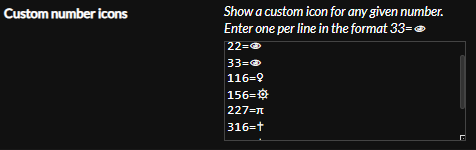
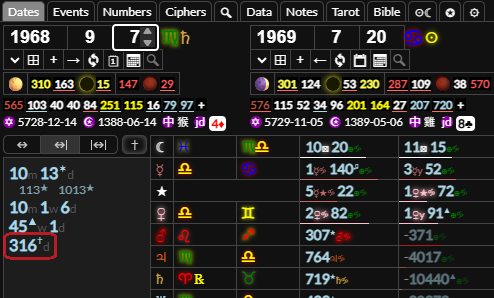
Custom number icons is a useful tool if there are numbers you want to highlight when they come up in the gematria table or dates tab. If you enter one entry per row in the format 33=👁 (number=character) it will show that symbol next to the number when it comes up.

Astrology Options
You can set the default astrology coordinates using the longitude and latitude inputs, clicking the button to get your current location or using the input to search for a location to set as the default coordinates. This is useful if you want to set your birth chart to show by default.
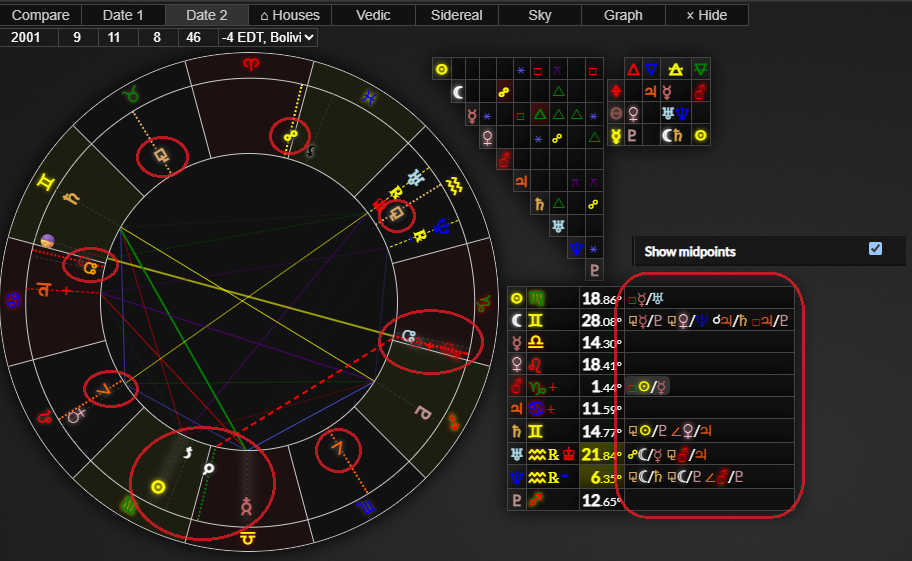
If you click the show midpoints checkbox you can see planets that aspect the midpoints of other planets in astrology planets table. In the Hamburg school of astrology it's significant if a planet is conjunct, semisquare, square or trioctile the midpoint (the degree half way between two planets) two other planets. You can hover over these to highlight the midpoints and aspect.
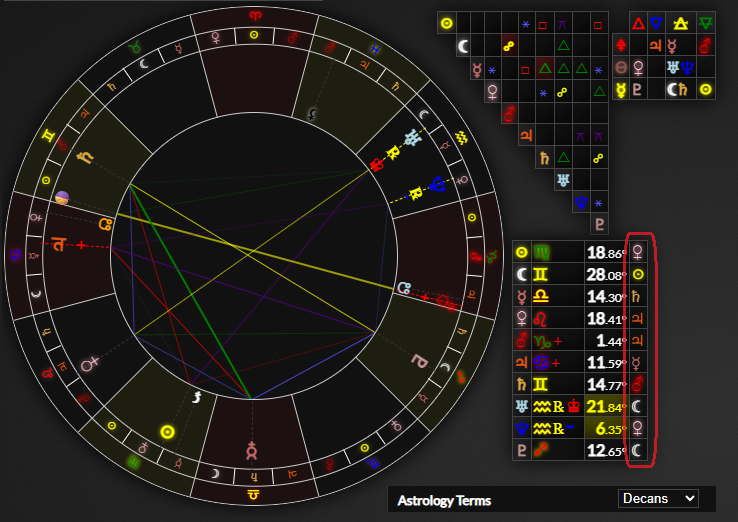
You can set the terms to show the zodiac signs divided into various different kinds of subsections. Each of these subsections is ruled by a planet. You can see the ruling planet of the term that a planet is in in the planets table.
The astrology orb is the number of degrees from an exact aspect two planets can be and still be considered to be having an effect.
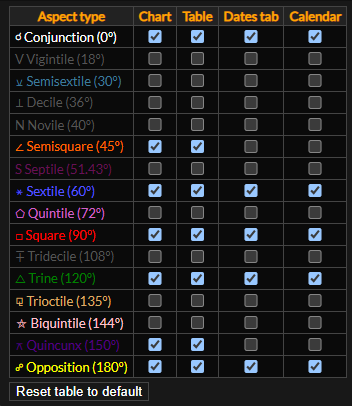
You can toggle which kinds of aspects to consider using the table at the bottom. you can choose where the kinds of aspects will show. If you only want to see minor aspects on the chart but nowhere else you can just tick the chart checkbox next to it.
Default Ciphers
You can select which ciphers to show by default by checking the checkbox next to the cipher in the active column. These are the ciphers that will be active in the gematria table when you load the page or click the reset ciphers button on the table.
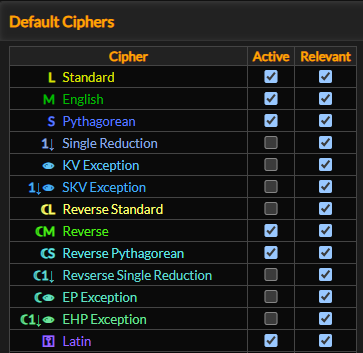
Setting a cipher as relevant means that words with the given gematria value in those ciphers will show in the numbers tab by default. You can toggle relevant ciphers to show in the gematria table by clicking the button on the top left of the table.
Custom Ciphers
To create a custom cipher, click the button at the bottom of the settings tab.
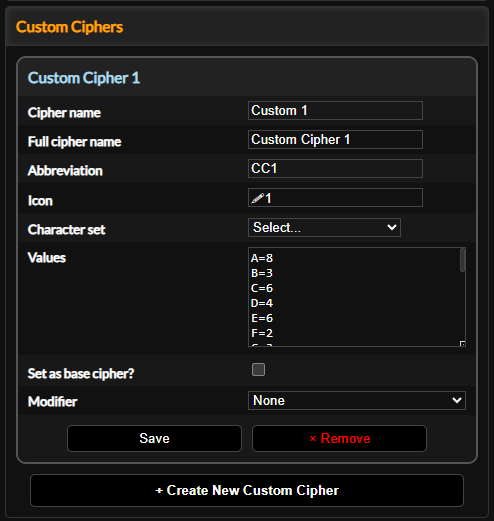
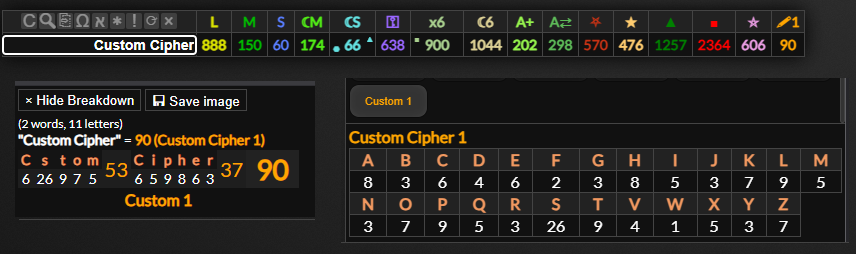
- The cipher name is what will display on the button in the ciphers tab and beneath the gematria breakdown in the breakdown/screenshot area.
- The full cipher name is what will show above the chart table in the ciphers tab and above the gematria breakdown in the breakdown/screenshot area.
- The abbreviation is what will display at the top of the gematria table if you select to show ciphers as abbreviated titles in the settings tab.
- The icon is what will display at the top of the gematria table if you select to show ciphers as icons in the settings tab. This will also display next to the gematria breakdown if you check the "show cipher icon next to gematria value in breakdown" checkbox in the settings tab.
The values must be entered one per row in the format Letter=Value, for example A=1. You can prefill the values text area with a character set by selecting it from the dropdown.
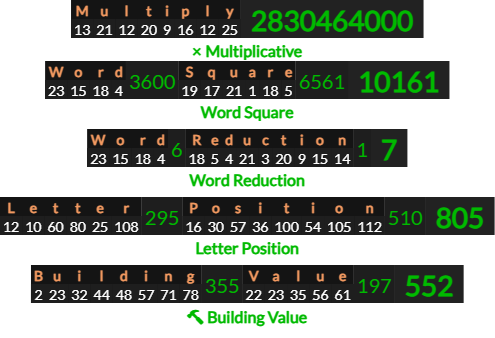
Modifiers can be set to calculate gematria values algorithmically.
- Multiply Letter Values - multiply the value of each letter in the word
- Word Square - square the value of each word
- Word Reduction - reduce the value of each word to a single digit
- Multiply by Letter Position - each letter is multiplied by it's position in the word. The first letter is multiplied by 1, the second by 2, the third by 3 and so on.
- Reverse Letter Position / Building Value. The value of each letter is the value of the letter plus the value of all previous letters in the word. For example, the value of the second letter is the value of the second letter plus the value of the first letter, the value of the third letter is the values of the first three letters added together and so on. This has the same effect as multiplying by letter position but in reverse.
To save the cipher, click the button. If you set it as a base cipher it will show in the table, if not you can activate it at any time in the ciphers tab, where a button will be added to the bottom of the list.
The gematria values of custom ciphers are not saved in the database.