
Data
The data tab can be used to easily manage the gematria table, view the words you have entered in to the database and the number information you have saved in the numbers tab. To navigate to the data tab you ca click the tab in the side panel or use the keyboard shortcut. You can also open the data tab by clicking the copy table button on the gematria table or by clicking the name of a numerical sequence in the numbers tab.
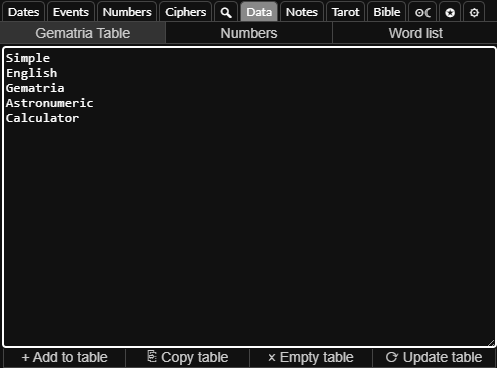
If you enter one word per line in the text area you can add each word to the gematria table row by row in one go. If you click the button it will copy the contents of the gematria table to the text area. You can then edit the text and click the button to refresh the gematria table with the new information you have entered.
Numerical Sequences
Below the text area you will find the symbols for the numerical sequences. You can these to view the numbers in the text area or them to view one number per row with the line number appended to the start.
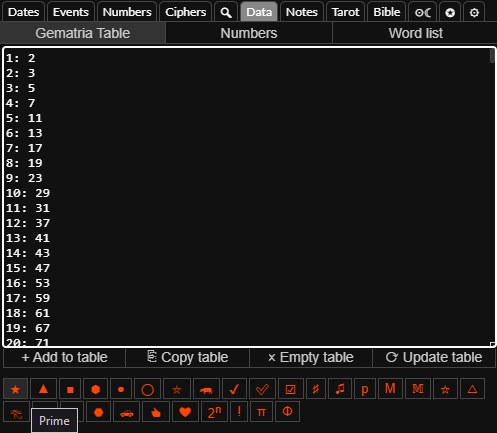
Data Word Lists
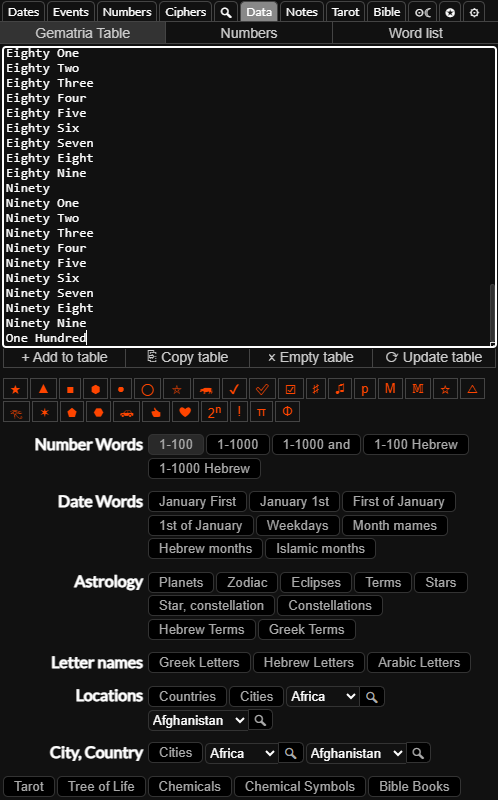
Below the numerical sequence buttons are many buttons that can be used for getting different kinds of terms and data lists into the table, such as number words, date words, astrology terms and locations. Simple click the buttons or select from the dropdowns and click the buttons to list the data in the text area.
Saved Number Info
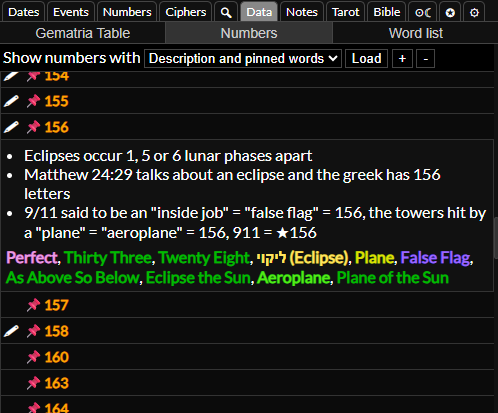
If you click the numbers sub-tab you will see a list of numbers about which you have saved information in the numbers tab. From the dropdown, you can select to list numbers that you have saved notes about, numbers that you have pinned words for or numbers that you have either saved notes about or pinned words for, then click the button to load the list. To view the information about the number you can click the list item to toggle it open or closed. The and buttons allow you to expand or collapse all numbers in the list.
Saved Words
If you click the word list sub-tab you can see a list of all the words you have entered into the database. You can use the dropdown menu to order by most recently entered words, oldest, most commonly entered words or least commonly entered words. You can also filter words by language, so only words that have gematria in a cipher in that language will show. Simply select the options you want from the dropdown and click the button to load the list.
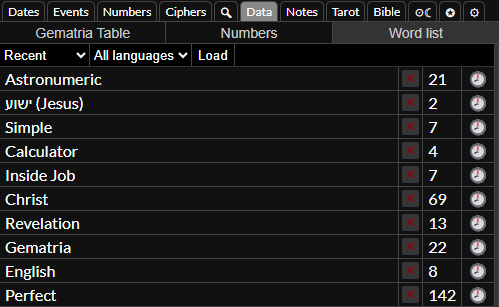
You can click the word to open it in the gematria calculator and click the button to remove the word from the database. The number next to the button indicates how many times that word or phrase has been entered into the database. If you hover over the icon you can see when you last entered that term.