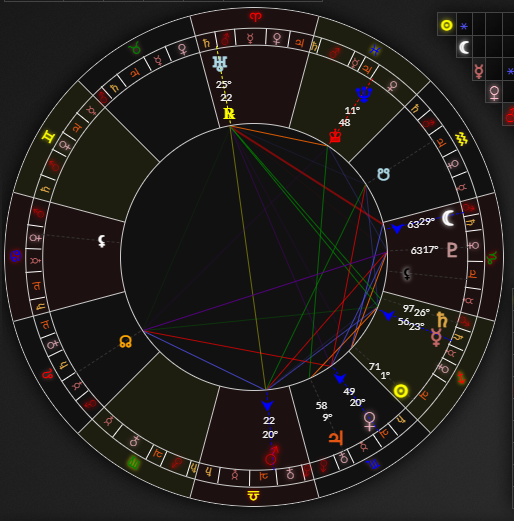
Astrology Chart
The astrology chart will be shown by default, but you can select whether it should be shown by default when you load the page in the settings tab. You can hide or show the astrology chart using the button by the side panel. You can focus on the astrology chart inputs by using the keyboard shortcut or use this to show the astrology chart if it is hidden. You can hide the astrology chart by pressing while focused on one of the inputs or pressing the Hide button.
For more information on how to read the astrology chart please refer to the astrology basics section.
Interacting with the Chart
You can the planets on the chart or the signs in the planets table to open up more information about them in the astrology panel or to hide them. You can show it again by clicking the planet glyph in the planets table or the glyph on the planet table it to toggle all the other planets at once..
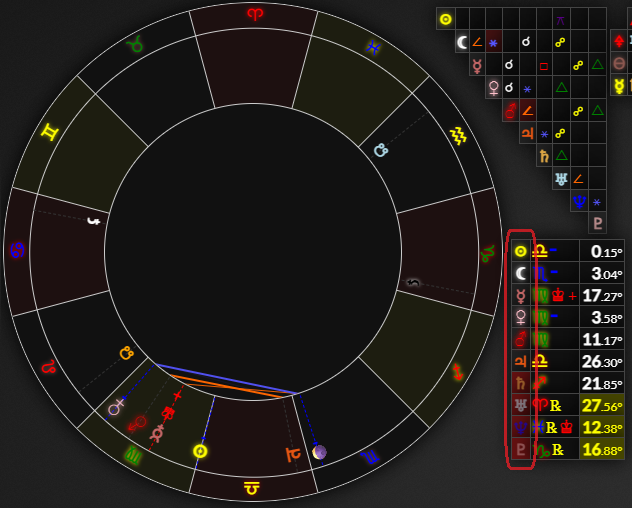
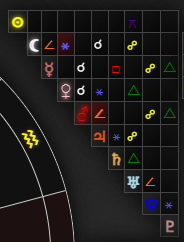
Hovering over planets on the chart or in the planets table will also highlight them in the aspects and planets table and highlight the aspects it makes to other planets on the chart.
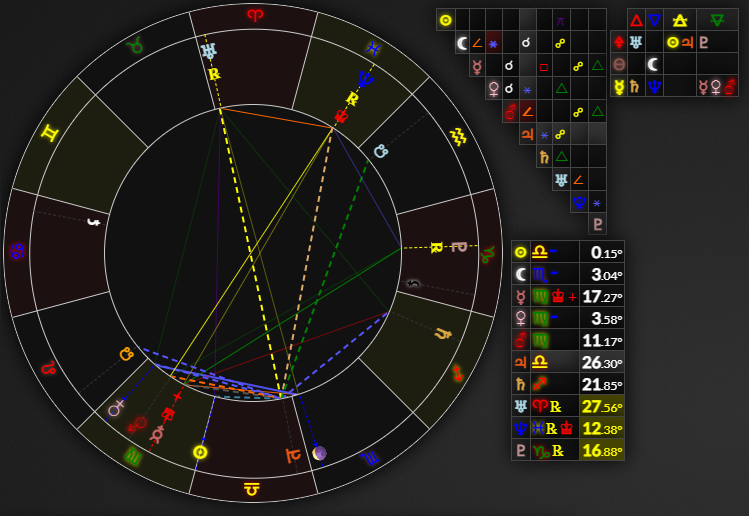
You can the aspects on the chart or in the aspects table to view more information about the two planets aspecting in the astrology panel. You can aspects on the chart and in the table to open them up in the graph view.
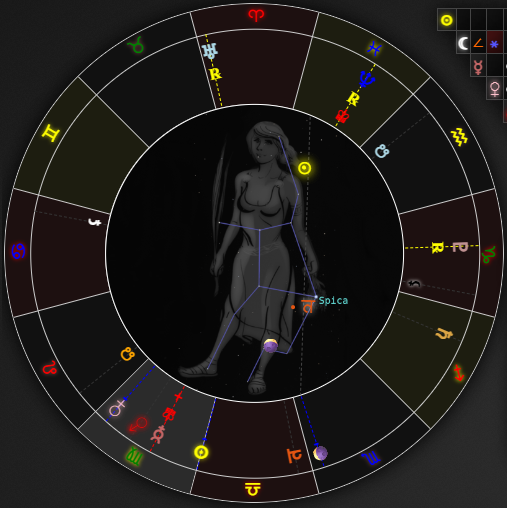
You can hover over the zodiac sign glyphs on the chart, in the planets table or the cell in the elements/modality table to view an image of the constellation and if there are any planets over it. Keep in mind that if you are viewing the (default) tropical chart the constellations will be out of sync with the signs on the chart due to the precession of the equinoxes, but this is not true for the Vedic and sidereal charts.
You can hover over any glyph to get more information about what it represents.
Other Charts
You can click the Vedic, sidereal and sky buttons at the top to toggle other types of charts or click them again to restore the tropical chart. You can toggle each of these by pressing (Vedic), (sidereal) or (sky) while focused on one of the astrology chart inputs.
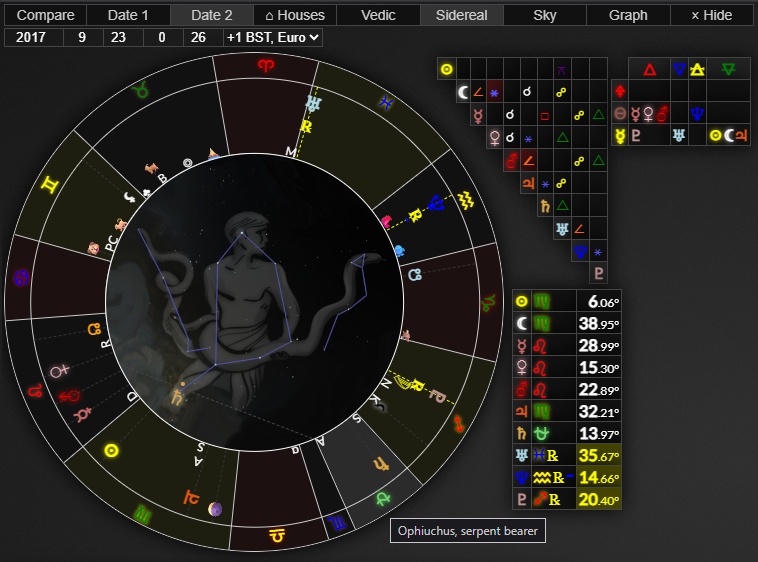
The Vedic chart uses equally sized signs relative to where the constellations are in the sky. The sidereal chart uses the constellation boundaries where they cross the ecliptic as defined by the IAU. This means that the constellation Ophiuchus also takes up a sizeable portion of the sidereal zodiac. The sidereal chart will also show some icons for some of the major fixed stars.
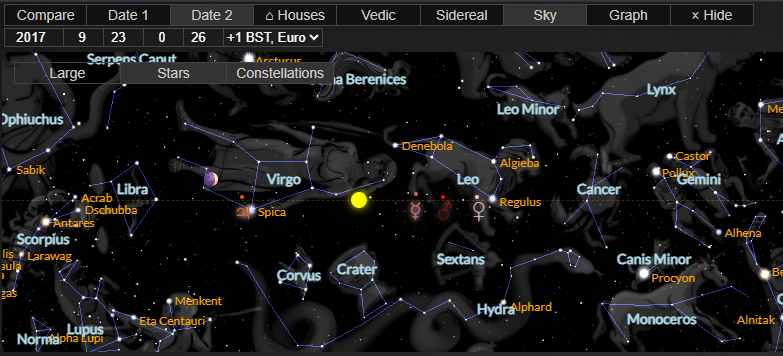
The sky view will show an image of the sky with the constellations and the planets overlayed at where they are in the sky. You can click the button to make it bigger and see where the planets are relative to all the constellations and fixed stars.
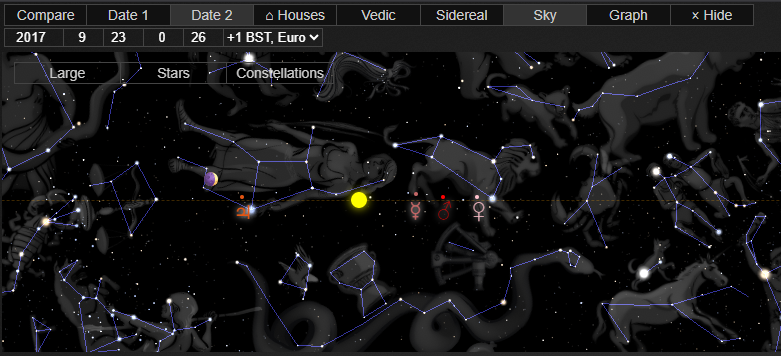
You can show labels for the constellations and stars by clicking the and buttons.
Comparison Chart
To view a comparison chart you can click the button or press while focused on one of the astrology chart inputs. This will show a comparison chart with the first date as the natal chart (transparent/"ghost" glyphs) and the second date as the transiting chart. You can select which aspects to show on the chart using the dropdown. You can use this to see all aspects, aspects on just one of the dates or only aspects between the two dates. You can swap the dates by pressing while focused on one of the astrology chart inputs.
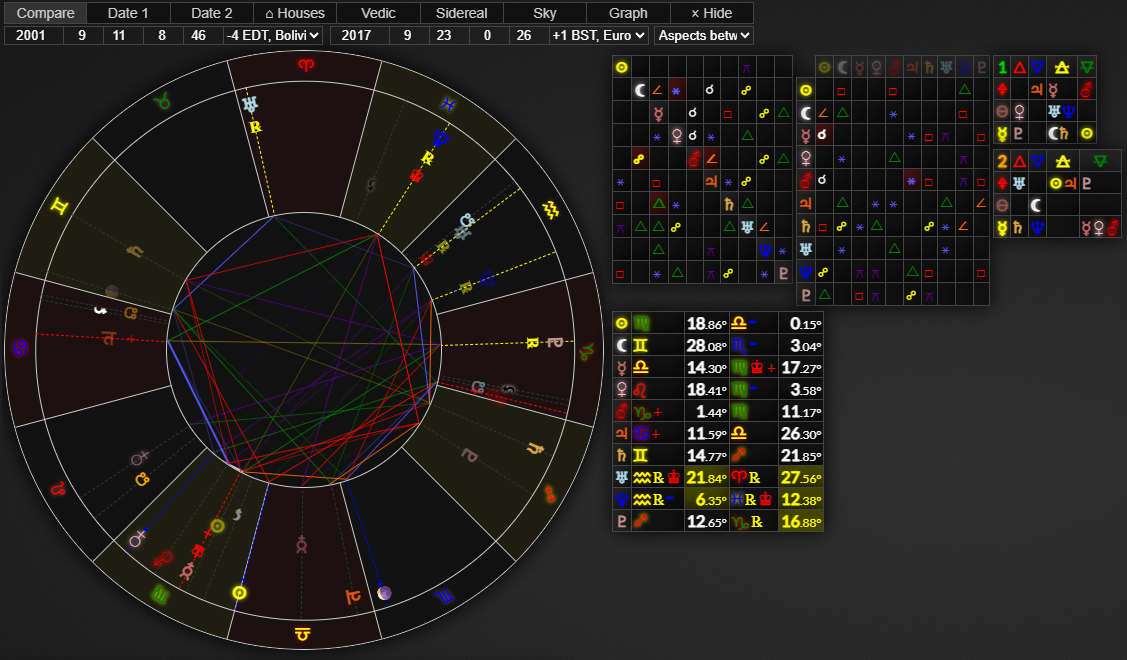
You can also swap between charts by clicking the buttons at the top or pressing while focused on one of the dates inputs.
Houses
To enable houses you can click the button at the top or press the button while focused on an input. You can also either the , or button to toggle houses and switch to the chart with one click.
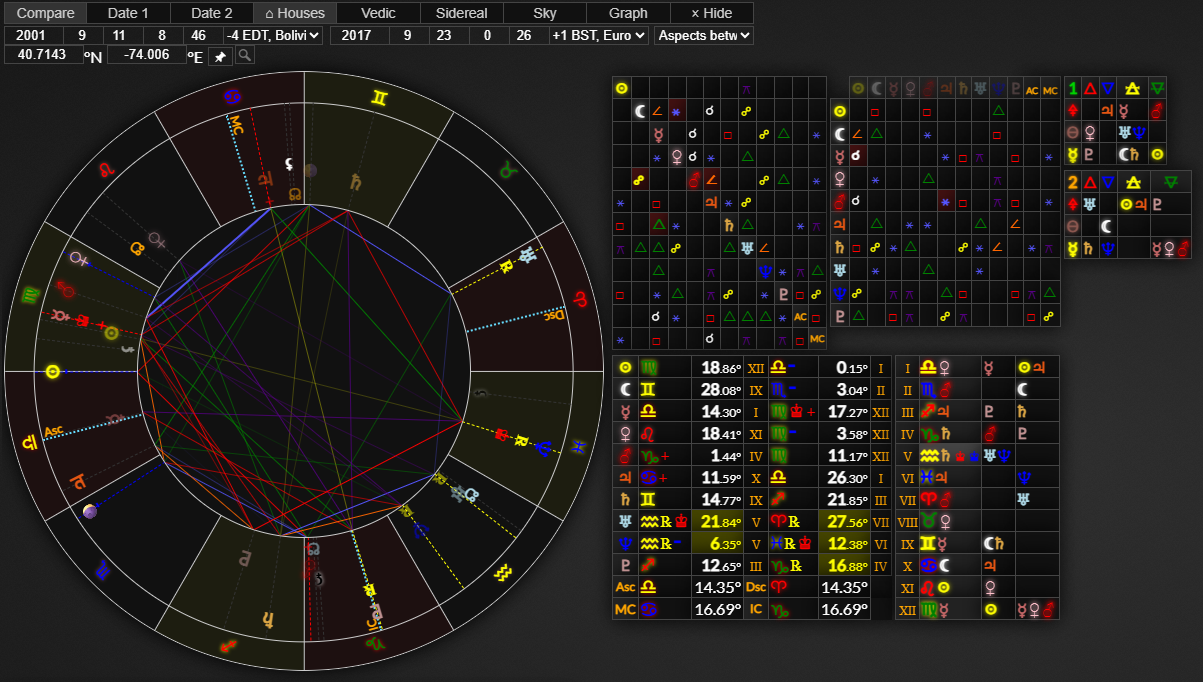
When you enable houses it will show the latitude and longitude coordinates input. This is used to determine where the horizon is relative to the stars at the given time which is how houses are worked out. You can set the default coordinates in the settings tab. You can press the button to get your current coordinates or the input to enter a location and get its coordinates. Getting a location will also set the time zone for that location at that time.
Time Lords and Annual Profections
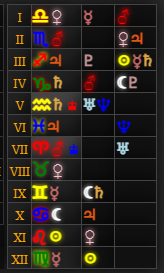
If you view a comparison chart with houses enabled you will see red and blue ♔ icons on the houses chart. The red icon denotes that using the first date as the natal chart it is an annual profection year for that house and the planetary ruler of that sign is the time lord ruler for that year. This means that the planet and the area of life represented by that house will have a stronger influence that year. The blue icon represents the monthly time lord ruler and the planetary ruler of that sign will have slightly more influence that month.
Settings
There are many options in the settings tab available for customising the astrology chart to function to your preference. To view these click on the settings tab and scroll down to the astrology options section. When you have made your changes remember to click the button at the top of the settings tab.