Date Grid
To open the date grid you can click the button by the sidebar or use the keyboard shortcut. You can also use the buttons on events and the date inputs in the dates tab. If you press from the dates tab date inputs it will open the date grid to that date. You can use the keyboard shortcut to focus on the date grid at any time if it is already open.
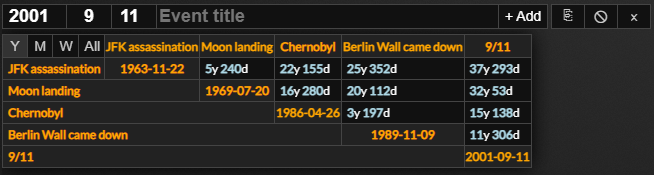
You can use the button to empty the date grid and the button to close the date grid. If you the close button it will empty the date grid and close it at the same time. You can also hide the date grid by pressing the button while focused on the date grid inputs.
You can set the date grid to be shown by default when you load the page in the settings tab.

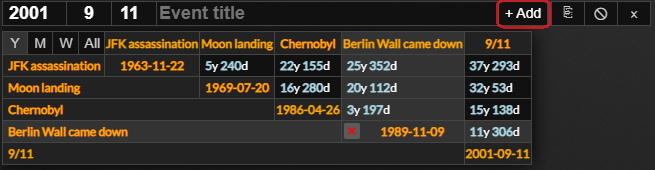
To add a date to the date grid, set the date, enter a title and press enter or click the . You can remove a date from the date grid by hovering over the title or date and clicking the remove button.
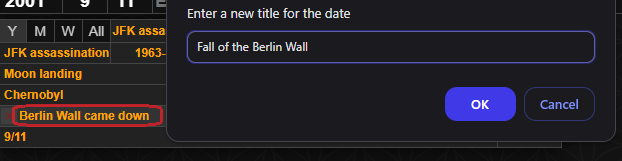
If you want to change the title of an entry you can the title and enter the new title into the prompt.
You can click on any date span cell to open it in the dates tab.

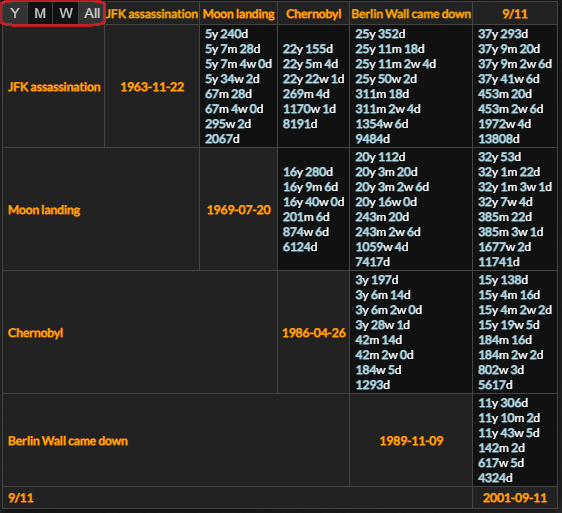
You can use the buttons in the top left of the table to view the date span broken down in different ways or to view all the different ways of breaking down the date span in every cell. You can use the between, duration and span buttons in the dates tab or the and keyboard shortcuts to add or subtract one day from the time spans in the date grid also.
If you click the button you can open the mass add/date grid management tool. If you enter one date per line in the format "YYYY-MM-DD Title", for example, 2001-09-11 World Trade Center destroyed, you can add many dates to the date grid at one time.
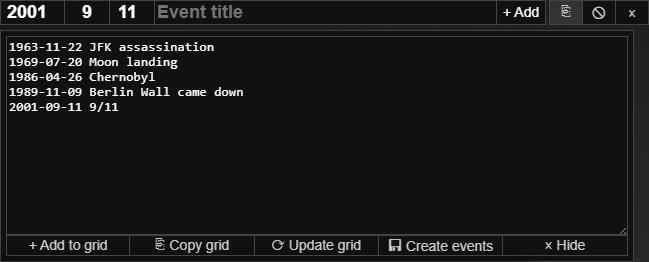
If you click the create events button or use the keyboard shortcut you can use this to quickly create multiple events at one time. If you use the and buttons you can copy the table, make changes and then refresh the grid to use the new dates and titles without having to empty the table and re-enter everything. You can click the button or press while focused on the text area to hide it.
Dates Tab
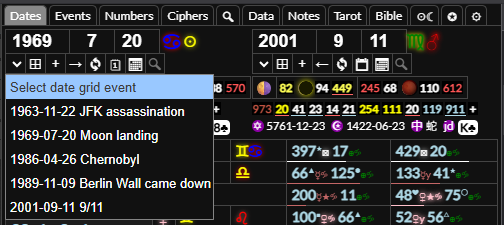
When you have added some events to the date grid they will appear in the drop down menu on the dates tab. You can select a date from here to go to that date. You can press while focused on a date input to focus on the dropdown and then use the arrow keys to quickly switch between dates.