
Gematria
Using the Gematria Table
To use the gematria table simply click on the text input on the top left or focus on it with and type a word or phrase. If you have the breakdown visible (toggle with ) then the gematria breakdown will show at the top as you type.
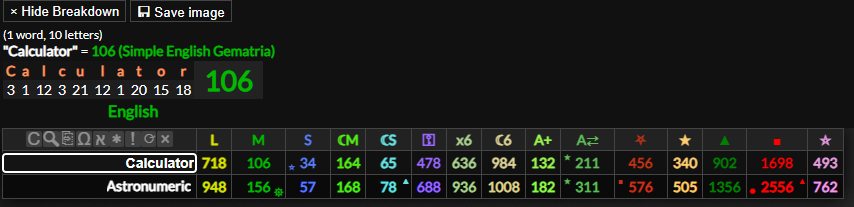
If you press the row will be entered into the table and the word will be saved in the database. You can view words in the database with a given gematria value from the numbers tab or find words with matching gematria in the search tab.
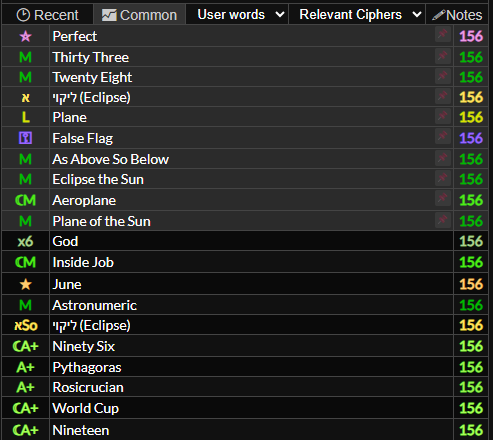
For more information on how to use the numbers tab, please refer to the numbers section of this guide.
Matching Words in the Database
If you press it will search for matches in the search tab. You can also search for matches by clicking a word in the gematria table. The more words you enter the more useful these tools will become.
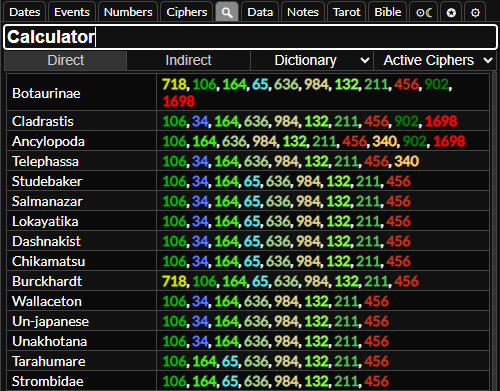
For more information on how to use the search tab, please refer to the search section of this guide.
Removing Words from the Table
If you hover over a word in the gematria table you will see a button to the left of the word or phrase; you can click this to remove the word from the gematria table, or it to also remove it from the database.

Highlight Matching
If you hover over a word or value in the gematria table it will highlight words and gematria values that match it. If they are indirect matches (different cipher) or are numerologically connected they will highlight in red. This will also highlight matching numbers in the dates tab, and you can hover over numbers in the dates tab to match them to the gematria table too.

Numerical Sequence Icons
As you type you may see icons next to gematria values; these correspond to the numerical sequences that the number appears in. For example, if you type a word with a gematria value of 911 it will have a ★ icon to show that it is a prime number, and if you hover over the number it will show you that it is the 156th prime number.
Active Cipher
You can change the active cipher (the cipher in the breakdown as you type) by clicking on the cipher heading on the gematria table, by a gematria value on the table or by clicking the cipher in the ciphers tab. You can a cipher in the ciphers tab to view it or set it as the active cipher without toggling the cipher on or off.

Selecting Ciphers
You can toggle ciphers on or off by clicking them in the ciphers tab. You can turn off a cipher by the heading in the gematria table.
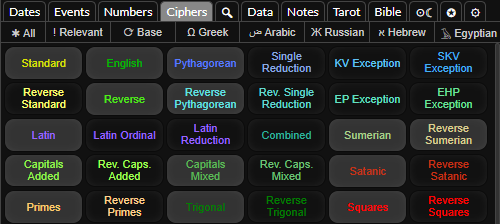
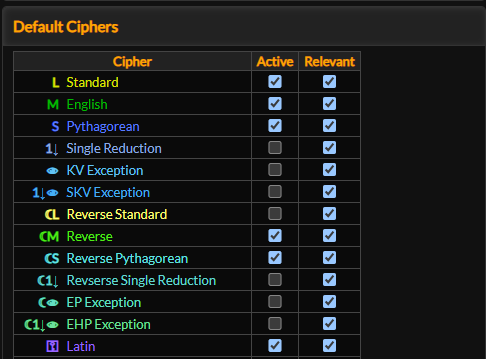
You can set the ciphers that are active when you load the page in the settings tab. If you click the button on the table you can reset the table to only show the default active ciphers.

In the settings tab you can also set ciphers to be "relevant" or not. This determines which gematria values will show in the numbers tab; gematria values in ciphers you set as relevant will show first. You can click the button on the gematria table to show relevant ciphers.
Buttons on the Table
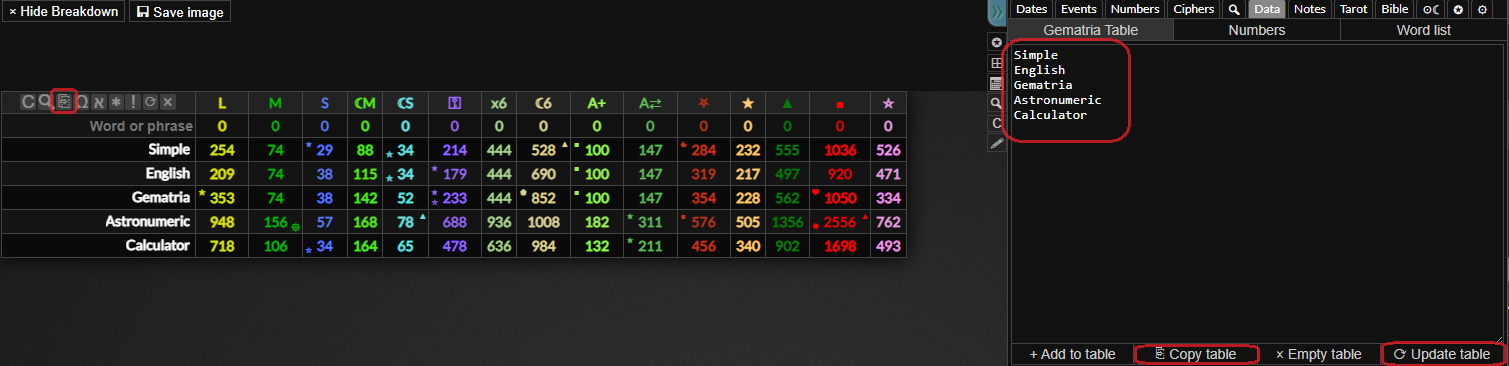
You can hover the buttons in the top left of the table to see what they do. If you click the (Empty table) button it will remove all rows from the gematria table. If you want to empty the table without being prompted to confirm you can this button instead.
If you click one of the language buttons it will activate all the ciphers for that language or deactivate them if they are all active. If you one of these buttons it will also deactivate all the other ciphers, so if you the Greek button it will only show the Greek ciphers. You can press while focused on the gematria table input to tab through these buttons on the keyboard and press to activate them.

The button will toggle the active ciphers chart, the button will toggle the gematria match table and the button will copy all the rows currently entered into the gematria table to the text area in the data tab. You can use this to quickly edit the rows and then update the gematria table without having to empty the table and re-enter everything.
For more information on how to use the data tab please refer to the data section of this guide.
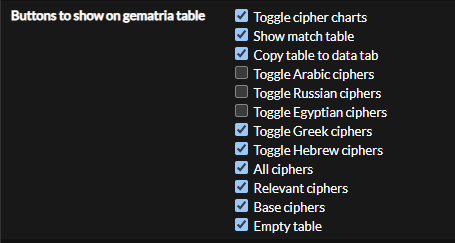
You can determine which buttons will show on the table in the settings tab.
Match Table
If you click the button on the gematria table or by the sidebar, or use the keyboard shortcut , you can open the gematria match table. To use it, simply enter a comma or space separated list of numbers that you want to match from the gematria table and it will show words that have gematria in the list.
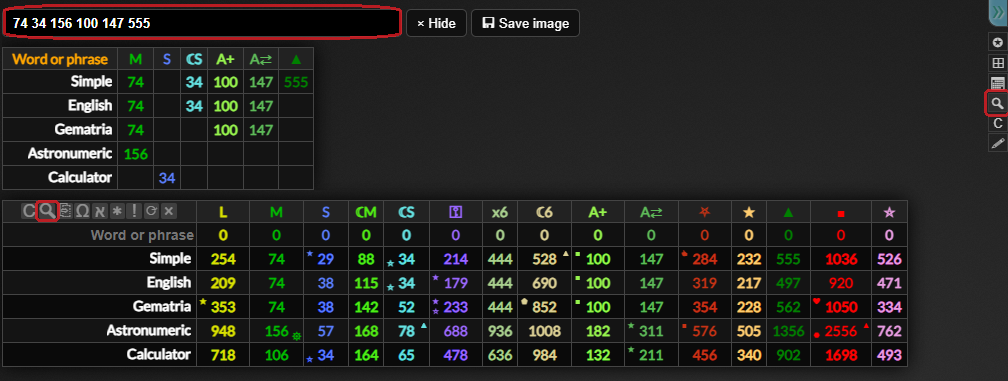
You can also remove words from the match table by clicking the button next to the word you want to remove, however it will be there again if you search for a new set of matches. This is useful if you want to create a screenshot image of the gematria match table, which you can do by clicking the button.
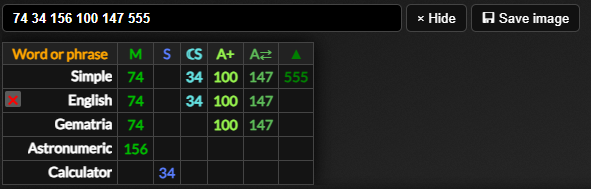
To hide the gematria match table you can click the button, press while focused on the text input or click either of the buttons.
Entering Numbers and Dates
If you enter a number and press ctrl+enter it will open the number up in the numbers tab. If you enter a number and press it will convert it into a number word, for example, 15 and then alt+enter would turn into Fifteen. Similarly, you can enter a date in the format YYYY-MM-DD and press alt+enter to convert it into the date written out as words, for example, 2001-09-11 and then alt+enter would turn into Tuesday Eleventh of September Two Thousand One.
Searching the Bible
You can enter a bible chapter or verse and press to navigate to that chapter or verse in the bible tab. This must be in the format "Revelation 22", "rev 22", "Revelation 22:21", "rev 22:21", that is, the name of the book or the first three characters of the title of the book and then the chapter number or chapter and verse numbers separated by a colon.