
Dates
The dates tab will be open in the side panel by default but you can navigate to it by cicking the tab or using the keyboard shortcut, which will also focus on the first date input, or you can also use the keyboard shortcut to also focus on the second date input.
The dates tab is used for getting information about dates and time spans. There are two date inputs in the international standard format of YYYY-MM-DD. Next to each date input you can see the zodiac sign that the sun is in on that day and the day of the week represented by planet glyph associated with that day of the week. You can hover over these for more information.
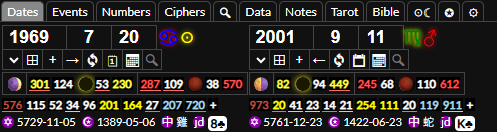
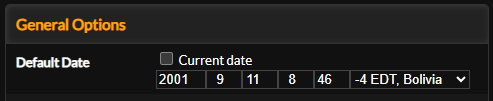
You can set the default date for the first date input in the settings tab. At any time you can reset the date to the default date by pressing while focused on the date input or for the current date. You can reset both dates to the default by pressing .
Below the date inputs are some tools for quick navigation between dates and around the calculator. The first input allows you to select a date currently entered into the date grid. While focused on the date input you can press to focus on this and then to switch between dates. You can press to go focus on the date input again.
- The button will add the current date to the date grid. You can also do this by pressing while focused on the date input.
- The button will take you to the create event form with the date pre-filled. You can also do this by pressing while focused on the date input.
- The will copy the current date to the other date input fields. You can also do this by pressing while focused on the date input.
- The button will swap the dates in each input. You can also do this by pressing while focused on the date input.
- The button will reset the the fields to the default date. You can this to set it to the default date of the other date input.
- The button will open the calendar on the current month. You also do this by pressing while focused on the date input.
- The input will allow you to search for events by their title and go to that date. You can quickly focus on this by pressing while focused on the date input and then typing the title of the event.
Days to Eclipses
Below the date input tools you will find the Moon phase and days to eclipses. If you hover over the moon image it will give you more information. If it is an eclipse or lunation you can click it to go to the exact time in the astrology chart.
If it is an eclipse it will also show you an image of the eclipse path and give you more information about the eclipse. You can it to open the eclipse up in the ☉☾ eclipse tab or it to open up the saros series.
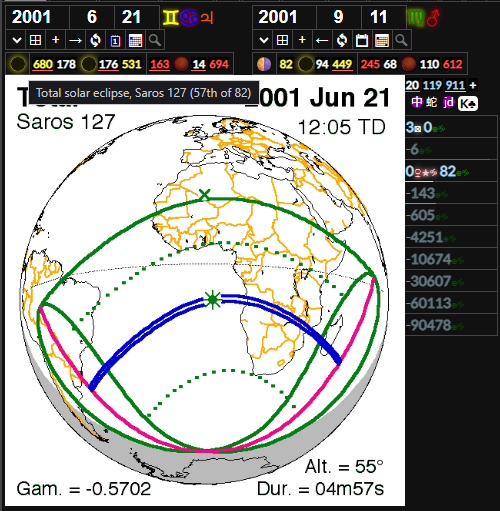
To the right of the moon image you will see the number of days to eclipses. The yellow numbers are the days from the previous total solar eclipse and to the next total solar eclipse and the white numbers from the previous and to the next non-total solar eclipse. You will see the same in red for lunar eclipses.
You can hover over these numbers to see more information about the eclipse and match it to other numbers on the screen. If one these numbers is in a numerical sequence it will be underlined and you can hover over it to see which sequence it is in.
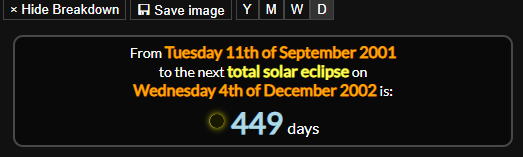
If you one of these numbers it will go to that date. If you the number it will go to the date in the other day input. If you the number it will go to that number in the numbers tab. If you the number it will open it up in the breakdown area. You can use this for creating screenshot images.
Date Numerology
Below the days to eclipses row you will see the date numerology. You can hover over each of these to get more information about what the number is or how it is worked out. You can press the button to toggle extra date numerologies. Like with the days to eclipse numbers you can hover over these numbers to match them to other numbers on the screen and hover over them to see what numerical sequences they are in. You can these to open them up in the breakdown area for screenshots.
Below the date numerology are other calendars. You can see the date on the Hebrew calendar, Islamic calendar, the year on the Chinese calendar, the toggle for the Julian calendar and the destiny card for the date. If you click these it will open up the date numerology information for the calendar, and you can right click them to open them up in the breakdown area.

Date Spans
Below the date numerology and calendars you will see the date span area. This shows different ways of breaking down the time span. You can hover over numbers with symbols to see which numerical sequences the numbers are in. If the numbers in the date span can be put together to make a number in a numerical sequence it will show that number and the numerical sequence it is in below the date span.
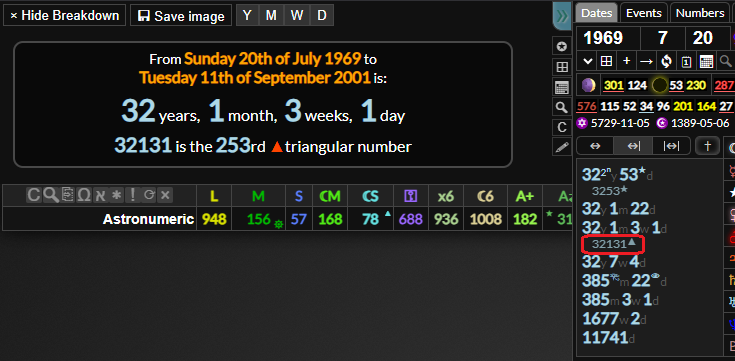
You can click the number to open them up in the numbers tab. If you a number in a date span it will open up the agglutinative number in the numbers tab, for example, 9 years 11 months 0 days will go to 911 in the numbers tab.
You can date spans to open them up in the breakdown area. If you an agglutinative number (the number below the date span) or the number in the numerical sequence it will also show that information in the breakdown area.
Between, Duration, Span
The buttons are for looking at date spans between two dates, from one date to the other, or the span of days from one date to the other respectively. You can quickly toggle between these by pressing and . The button will breakdown the date span using the Biblical prophetic times of 30 day months and 360 day years. You can toggle this on or off with or pressing while focused on the date input.
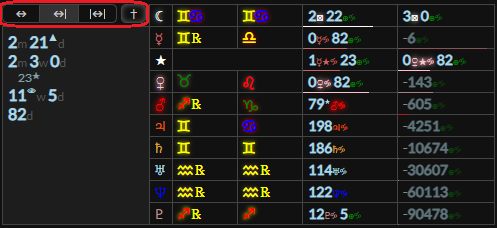
Planetary Date spans
To the right of the date spans you can see the planetary date spans. This shows the number of synodic days and sidereal years for the moon and each planet. There is a coloured line beneath each of these that are longer than a day to show how complete the most recent day or year is. You can these time spans to open them up in the breakdown area.
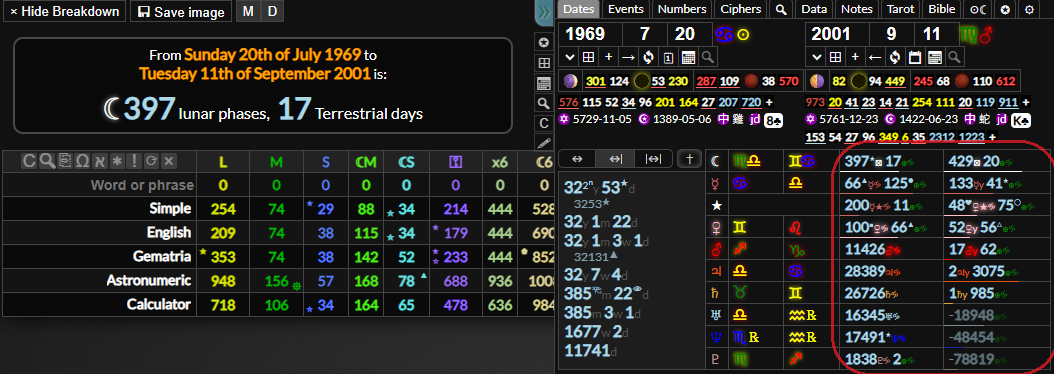
The zodiac signs show which sign the planet is in on each date, whether it's retrograde or not and you can click these to open up the combination of planet + sign in the astrology tab. The cell will also be highlighted if the planet changed sign on that date.
You can click the planet glyph to get a more detailed breakdown of the planetary date span and right click these date spans to open them up in the breakdown area. You can cycle through the planets by pressing or while focused on a date input or press to hide it.
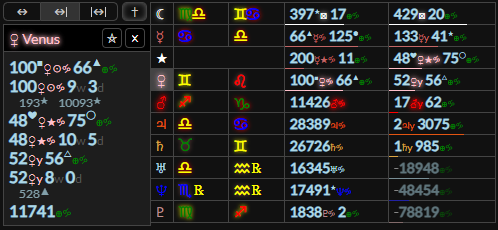
Lunar Phases and Sidereal Months
If you open up the moon date spans you will see a star or button. These are for switching between ★ sidereal (orbits of the moon around the earth relative to the stars) or ☉ lunar phases (synodic lunar months, new moon to new moon, relative to the ☉ sun). If you the moon icon in the planetary spans area it will go straight to the sidereal month date spans.
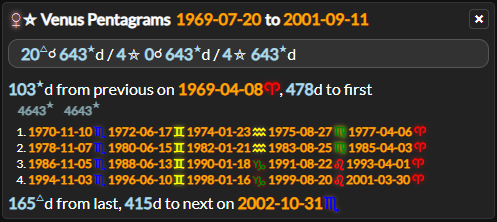
Venus Pentagrams
If you open up the Venus date spans you will see a button. You can use this for working out Venus pentagram dates. Because Venus and Earth move around the sun in a 13:8 orbit ratio (Fibonacci numbers) it forms a pattern called the Rose of Venus ( = 138) and the points of conjunction with the Sun form a ⛤ pentagram. This is a cycle that takes roughly 8 years to complete. You can also open up the Venus pentagram calculator by the ♀ Venus glyph on the planetary date durations table.
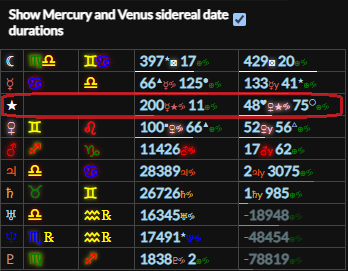
Sidereal Mercury and Venus days
Because the synodic days (relative to the sun) and sidereal rotations (relative to the stars) for Mercury and Venus are very different, you can also choose to show sidereal Mercury and Venus days in the planetary date span table. You can select this from the settings tab.
Anniversaries
Below the date spans you can see the events you have created that are on the anniversary of the date and how many years before or after they are. You can these events to open them up in the events tab or them to go to that date. Events that are on the current date will be highlighted in yellow. You can hover over these and click the button to add them to the date grid. If you have set time and location information for the event you can also click the button to view the astrological chart for that event. If you wish to hide an event from this list you can navigate to that event, untick the "show anniversary" checkbox and then save it.
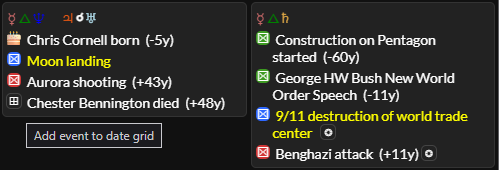
Above the events you can see astrological aspects that took place on that date and any holidays that take place on that date. If you wish to also see aspects made by the moon here you can enable this from the settings tab.