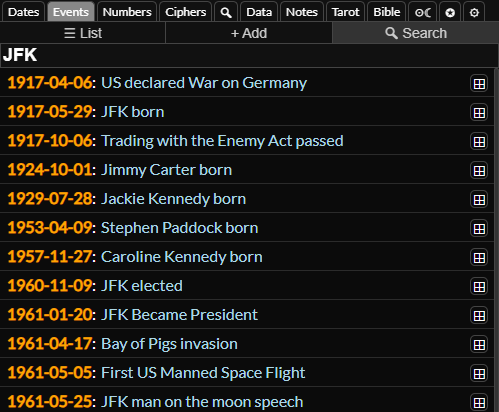
Events
If you navigate to the events tab by clicking it or using the keyboard shortcut you will see a list of events you have created separated by years and months. You can click to toggle the years and months to see the events. You can a year to expand all of the months in that year.
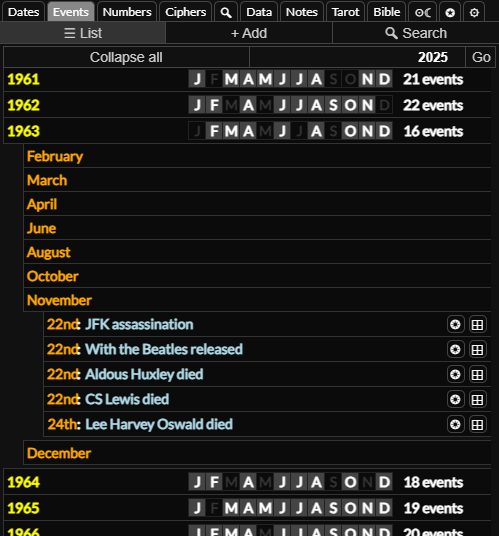
If you click the date on an event it will go to that date in the dates tab. If you it it will go to that date in the second date input. If you click the button you can view the astrological chart for that date. If you it you can view that chart in the second date. If you click the button you can add that event to the date grid.
Editing Events
If you click the event title you can show or hide the event form. Here you can edit the date, title and notes for that event. You can press while focused on one of the inputs to save the changes or to hide the event form.
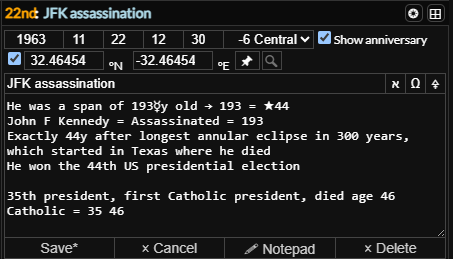
The "show anniversary" checkbox determines whether the event will be shown in the dates tab. You can check the "time/location" checkbox to enter in the time and location coordinates for the astrology chart. When you click the button on the event or in any other tab it will then show the astrology chart with this information.
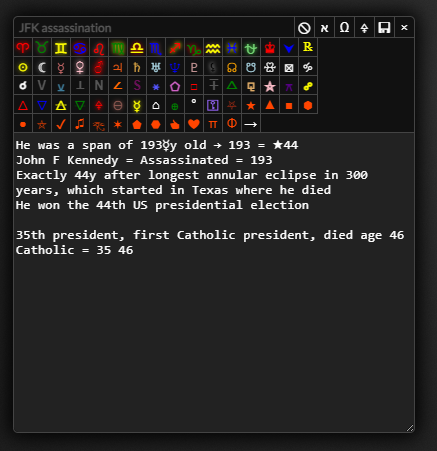
You can click the button or press while focused on one of the inputs to open up the event in the notepad. From here you can make changes to the notes and then press to copy the text back to the event, you can then press again to save the changes. You can click the button on the notepad to cancel this and use the regular notepad again.
Adding Events
You can create events using the date grid and notes tab, or by navigating to the events tab and clicking the sub tab. You can cycle through these sub-tabs by pressing or . The add event works the same as the event form in the list sub-tab.
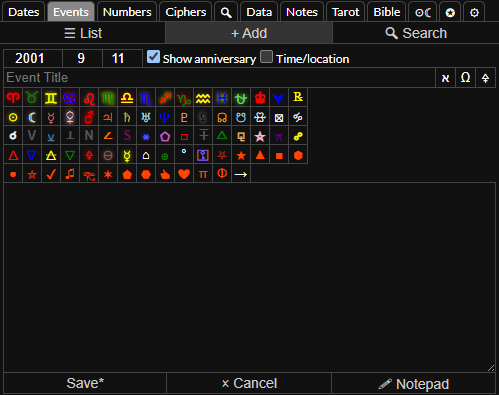
If you press while focused on the notepad without an event selected in the notepad, it will copy the text to the add event form. If you press while focused on a date input in the dates tab or click the button below the date input, it will navigate to this form with the date pre-filled.
Searching Events
You can search events by navigating to the Search sub tab. Simply type the search terms and press enter. This will also search the text in the notes.