Astrology Panel
To navigate to the astrology panel tab you can click the tab in the side panel or use the keyboard shortcut. You can open up the astrology panel by clicking the zodiac signs on the dates tab, on the calendar and in various places on the astrology chart. The astrology panel can be used for viewing information and making notes about planets in signs and planets aspecting other planets.
Planet in Sign
To view information about a planet in a zodiac sign you can select the planet in the top left and a sign from the top row on the right. This will show information about the planet in the left, including associated metals/chemical elements, tarot cards, keywords, the signs that the affect the planets influence and information about its rotation and orbital times. The sign will have the modality, element, tarot card, keywords, it's effect on planets and information about the house that it rules.
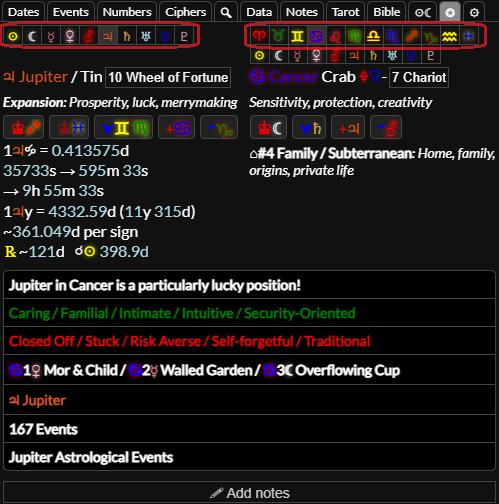
You can click the accordion items to view more information about the combination of sign and planet, the decans in the sign and the planet itself. Each sign is divided into three decans which each have a ruling planet, title and associated tarot card. You can toggle between these using the buttons in the accordion section.
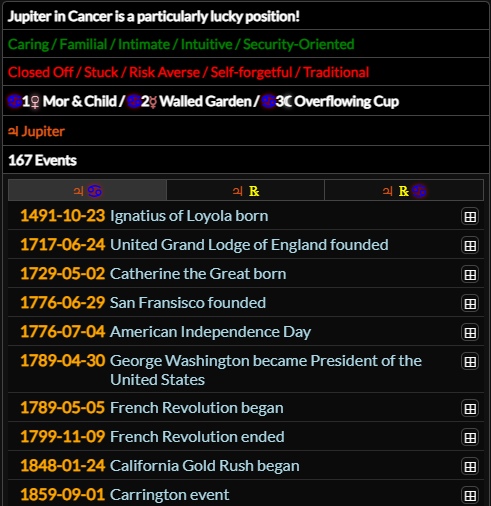
In the events accordion section you can see events that occurred while the planet was in the sign. You can click the other buttons at the top to view only events that occurred while the planet was retrograde or while the planet was retrograde in the sign.
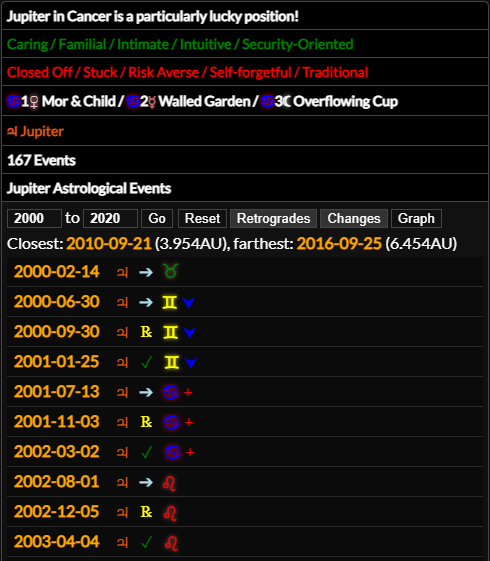
In the planet astrological events accordion section you can enter a start year and end year then click the button to see all the signs changes and stations (when a planet goes retrograde or direct) within the time period. You can click the and buttons to toggle either of these. This will also show the dates when the planet is closest to and furthest away from earth in the given time period.
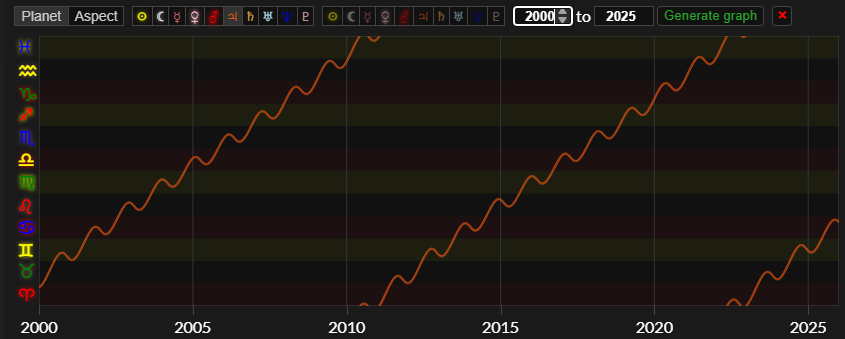
If you click the button it will open up the graph for the planet for the given time period so you can see its path through the zodiac over time.
Notes
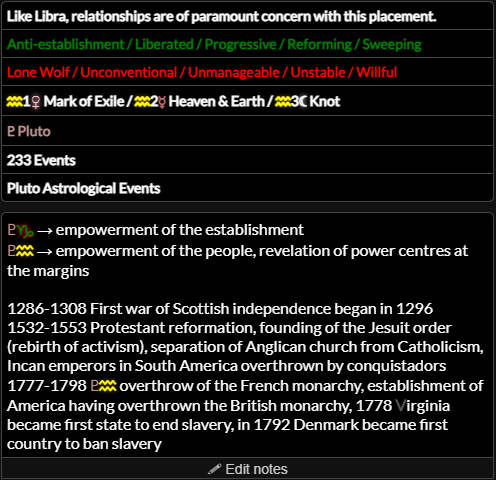
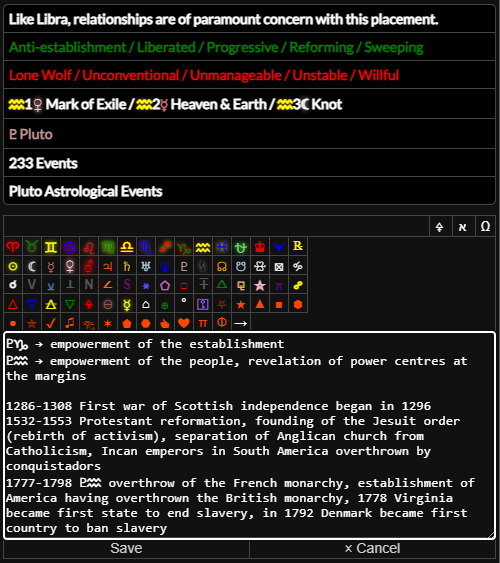
If you click the add notes button at the bottom you can enter notes on the planet and sign combination. You can click the button or press while focused on the save area to save your notes. This is very useful for keeping a reminder of things that you learn as you learn more about astrology.
Planet Aspects
If you select a planet from the top right hand list you can view information about two planets and how they aspect together.
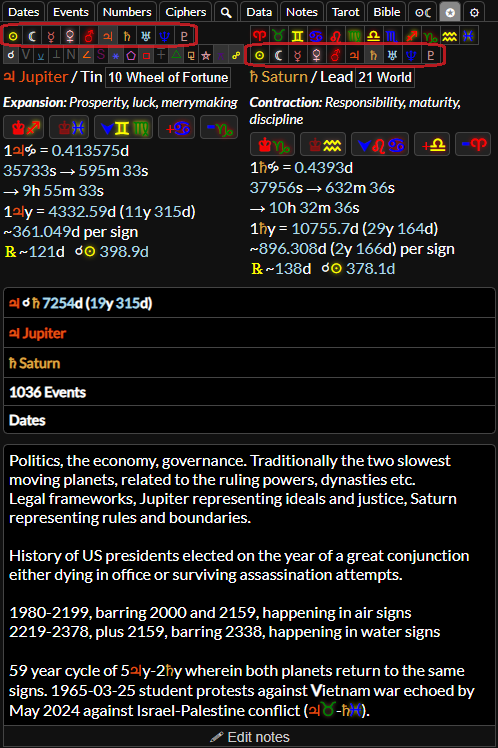
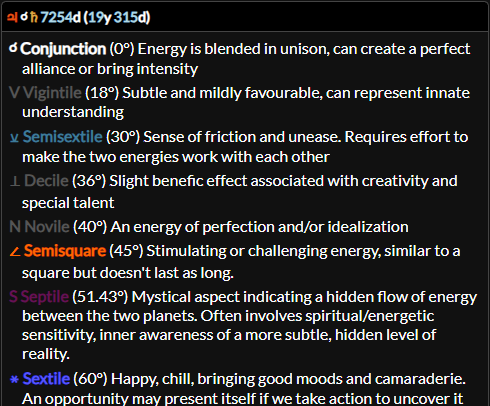
The first item in the accordion will be titled with the length of the planetary cycle, how long it takes on average for the two planets to conjunct. When planets conjunct they begin a new planetary cycle which goes through each of the aspects (sextile, square, trine, opposition, trine, square, sextile) before conjuncting again. Aspects that take place in longer planetary cycles have a bigger impact and the effects are felt over a longer time period.
If you open this accordion section you will find a reference list for each kind of aspect, and below that reference information for each planet.
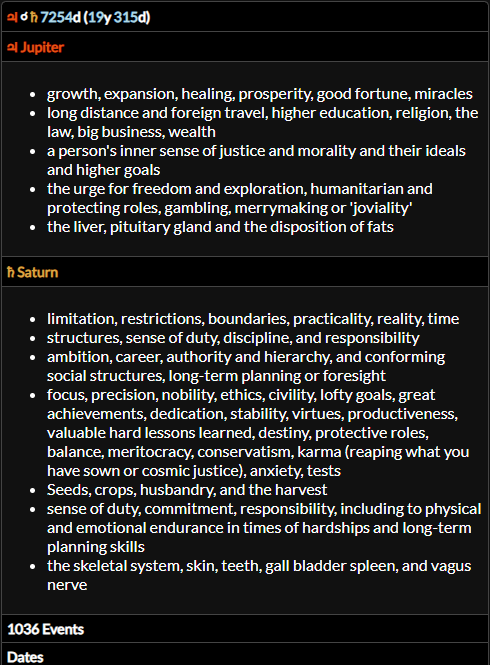
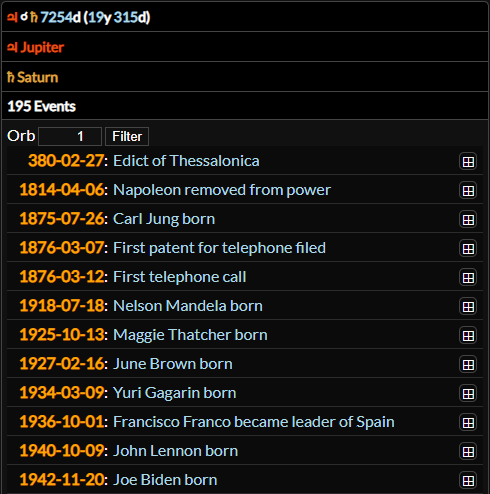
In the events accordion section you can see which events occurred when the two planets were making an aspect. You can enter the orb (degrees from exact aspect where the effect is still considered) and filter to make it more or less strict. You can change the default astrology orb in the settings tab.
Beneath the events is the dates section. You can enter a starting year and ending year and click go to view all the aspects made by the two planets within the given time period. You can click the button to reset the year inputs.
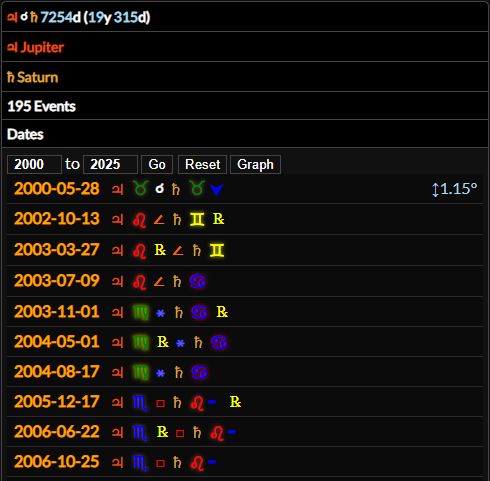
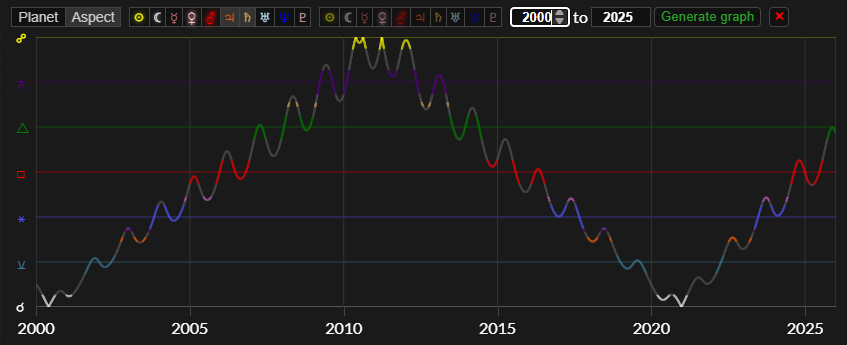
You can click the button to view the graph of the degrees of separation over the given time period.
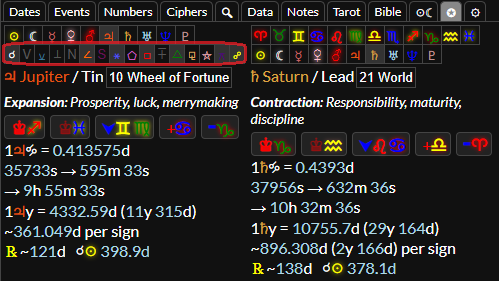
You can select which kinds of aspects will show in the events and dates lists by clicking the aspect glyphs in the top left of the astrology panel. If you click through from the astrology chart by clicking an aspect on the chart or the aspects table it will automatically select the aspect that you clicked. You can these aspect glyphs to toggle all the other glyphs on or off.
At the bottom of the panel you can add notes for the planetary aspect combination. This functions the same as the planet in sign notes function.